
Introduction
A critical scheduled process has failed in Oracle Fusion.
The production support user opens Scheduled Processes, searches for the job, and finds nothing.
Why?
Because another user submitted it.
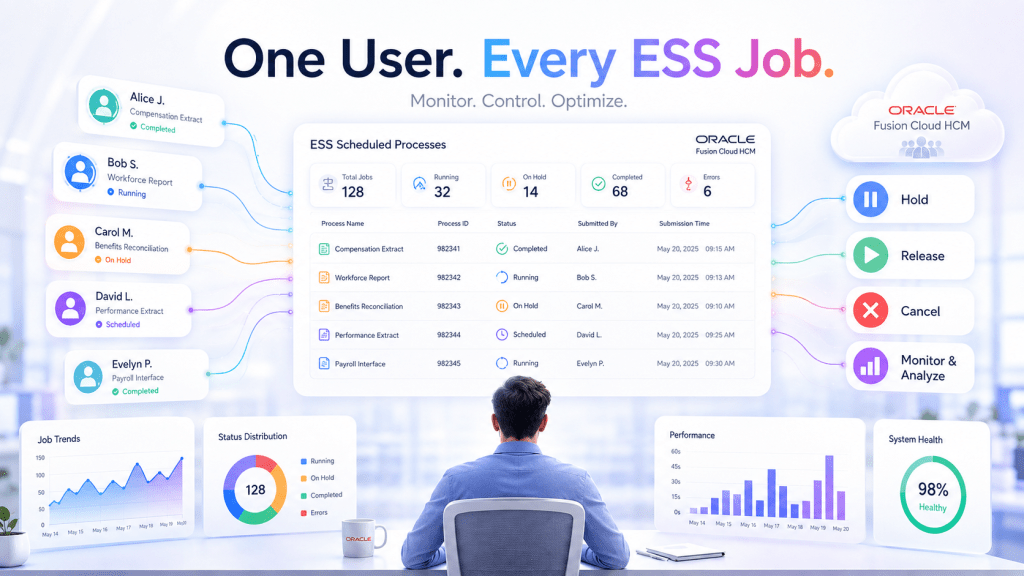
By default, Oracle Fusion users can manage the scheduled processes they submit. But production support teams often need one authorised user to monitor jobs submitted by everyone.
With the right custom security role, that user can:
- View jobs submitted by other users
- Investigate failed or long-running processes
- Put eligible processes on hold
- Release processes that are already on hold
- Cancel incorrect submissions
- View process output, when authorised
Let us configure this using the principle of least privilege.
Note: ESS in this blog refers to Enterprise Scheduler Service, not Employee Self Service.
Choose the Right Level of Access
Before creating the role, decide what the user actually needs.
| Business Requirement | Recommended Configuration |
|---|---|
| View processes submitted by all users | ESS Monitor Role |
| Hold or release processes | ESS Monitor Role plus the required data security actions |
| Cancel processes submitted by others | ESS Monitor Role plus ESS_REQUEST_CANCEL |
| View process output submitted by others | Add ESS_REQUEST_OUTPUT_READ |
| Full process administration | ESS Administrator Role |
The ESS Monitor Role is recommended when the requirement is primarily process visibility.
The ESS Administrator Role provides broader update and cancellation capabilities. Assign it only when full administration is genuinely required.
Step-by-Step Configuration
Step 1: Create a Custom Role
Navigate to:
Navigator > Tools > Security Console > Roles
Click Create Role and enter suitable details.
Role Name: Monitor and Manage All ESS Processes
Role Code: FPF_MANAGE_ALL_ESS_PROCESSES
Description: Allows authorised users to monitor and manage scheduled processes submitted by other users.
Use your organisation’s security naming convention when defining the role.


Step 2: Confirm Scheduled Processes Page Access
The user must have the following privilege to open the Scheduled Processes work area:
FND_MANAGE_SCHEDULED_PROCESSES_PRIV
Privilege name:
Manage Scheduled Processes
Many standard Oracle Fusion job roles already include this privilege.
If the target user can already open the Scheduled Processes page, you can proceed to the next step. Otherwise, add this privilege under Function Security Policies.


Step 3: Add the ESS Monitor Role
Open the Role Hierarchy section.
- Click Add Role.
- Search for ESS Monitor Role.
- Select the role.
- Click Add Role Membership.
Role code: ESSMonitor
This role allows the assigned user to view scheduled processes submitted by other users.


If the requirement is only to view jobs submitted by other users, you can skip Step 4.
Step 4: Select the Required Process Actions
Open Data Security Policies and create a policy using:
Data Resource: ESS_REQUEST_HISTORY
Data Set: All Values
Select only the actions required for the user.
| User Requirement | Action to Select |
| View process details | ESS_REQUEST_READ |
| Put a process on hold | ESS_REQUEST_HOLD |
| Release a held process | ESS_REQUEST_RELEASE |
| Cancel a process | ESS_REQUEST_CANCEL |
| View process output | ESS_REQUEST_OUTPUT_READ |
| Update process output before execution | ESS_REQUEST_OUTPUT_UPDATE |
Selecting All Values applies the access to scheduled processes submitted by all users.
For example, a production support user who needs to view, hold, release, and cancel jobs can be assigned:
- ESS Monitor Role
ESS_REQUEST_HOLDESS_REQUEST_RELEASEESS_REQUEST_CANCEL
Add output access only when the user genuinely needs to open reports, logs, or other process output submitted by another user.


Grant only the actions required for the user’s support responsibility.
Step 5: Assign the Custom Role
Open the Users section of the custom role.
- Click Add User.
- Search for the required Fusion user.
- Select the user.
- Review the Summary and Impact Report.
- Click Save and Close.
After role provisioning is complete, ask the user to sign out and sign back in.


Validate the Configuration
Log in as the assigned user and navigate to:
Navigator > Tools > Scheduled Processes
The default saved search normally shows processes submitted within the last hour. If the page appears blank, select:
- Last 24 Hours
- Last 72 Hours
- Cancelable Processes
- A custom submission date range
The user should now be able to see scheduled processes submitted by different users.


Select a process submitted by another user and review the available actions.
Depending on the security actions assigned and the process status, the user may see:
- Put On Hold
- Release Process
- Cancel Process
- View Output


Why Is the Hold, Release or Cancel Option Missing?
The available action depends on the current process status.
For example:
- Release Process appears when the process is already on hold.
- Put On Hold appears only when the process can still be paused.
- Cancel Process appears only for an eligible process status.
- Completed processes may no longer support these actions.
A missing button does not always indicate a security issue. Test the access using processes in different statuses.
Be Careful with Recurring Processes
When validating cancellation access, check whether the selected row is:
- A single process run
- A child run of a recurring schedule
- The original parent submission
Cancelling the original parent submission can cancel both the current and future runs created from that schedule.
Always review the process hierarchy before cancelling a recurring job.
Real-World Use Cases
🌙 After-Hours Production Support
A support consultant can investigate a failed job even when the original submitter is unavailable.
💰 Payroll and Month-End Monitoring
One authorised user can monitor payroll, extracts, reports, integrations, and month-end processes from a single account.
🛑 Emergency Process Control
A support administrator can hold or cancel an incorrectly submitted process before it affects downstream activities.
🔄 Integration Monitoring
The integration team can monitor jobs submitted through service accounts without sharing or using those account credentials.
Best Practices
- Start with the ESS Monitor Role for cross-user visibility.
- Add Hold, Release, Cancel, or Output actions only when required.
- Avoid assigning the ESS Administrator Role for a simple view-only requirement.
- Test the role in a non-production environment first.
- Use test processes when validating cancellation access.
- Review the assigned users periodically.
Conclusion
Production support should not stop simply because another user submitted the scheduled process.
By creating a custom role with the ESS Monitor Role, one authorised Oracle Fusion user can view processes submitted across the environment.
When additional control is required, use the ESS_REQUEST_HISTORY data security policy to provide only the necessary actions, such as Hold, Release, Cancel, or View Output.
The result is clear:
- Better process visibility
- Faster production troubleshooting
- Controlled cancellation access
- Reduced dependency on individual submitters
- No unnecessary administrative privileges
A small security configuration can make a major difference during critical production-support situations.


Leave a Reply